
Silk Mobile
Table of Contents (Homepage)
- Overview
- Setting Up
- Getting Started
- How To
- Connecting Devices And Emulators
- Preparing Applications For Testing
- Managing Applications
- Recording Tests
- Working With Test Commands
- Adding Commands To Your Scripts
- Object Commands
- Click
- ClickCoordinate
- ClickIn
- ClickOffset
- Drag
- ElementGetProperty
- ElementGetTableRowsCount
- ElementListPick
- ElementListSelect
- ElementListVisible
- ElementScrollToTableRow
- ElementSendText
- ElementSetProperty
- ElementSwipe
- ElementSwipeWhileNotFound
- GetAllValues
- GetElementCount
- GetElementCountIn
- GetTextIn
- IsElementBlank
- IsElementFound
- IsFoundIn
- LongClick
- RunNativeAPICall
- SendWhileNotFound
- VerifyElementFound
- VerifyElementNotFound
- VerifyIn
- WaitForElement
- WaitForElementToVanish
- GetCoordinateColor
- DragDrop
- Application Commands
- Device Commands
- Web (Hybrid) Specific Commands
- Utilities Commands
- Monitoring Commands
- Configuration Commands
- ExtractLanguageFiles
- SetDefaultClickDownTime
- SetDefaultTimeOut
- SetDefaultWebView
- SetDragStartDelay
- SetInKeyDelay
- SetKeyToKeyDelay
- SetLanguage
- SetLanguagePropertiesFile
- SetShowImageInReport
- SetShowPassImageInReport
- SetShowReport
- SetSpeed
- SetThrowExceptionOnFail
- SetWebAutoScroll
- StartStepsGroup
- StopStepsGroup
- TextFilter
- Miscellaneous Commands
- Controlling Element Identification Rules
- Editing Test Objects
- Executing Test Scripts
- Report Of Executed Test
- Working From Code Environment
- Continuous Integration
- Layout Verification Tests
- Use Device Vitals Monitors
- Troubleshooting
- Terminology
Session 6 - Running Test Scripts On Multiple Devices
In this session we will demonstrate how to run the same script on multiple devices.
We will use the test that we have created and exported in sessions 1-5 on the eri-Bank application.
Silk Mobile allows you to run the same script, on different devices, even if their respective operating systems are different.
In this example we will use the script that we have created on an Android device (henceforth called the main device), and also run it on an iOS device (henceforth called the secondary device).
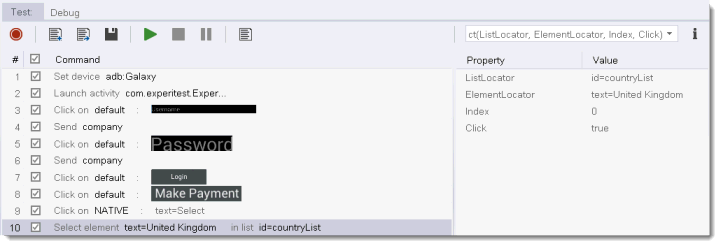
How is it done?
In general, you need to add the relevant Element properties from the secondary device to the existing Elements (Images/Text/Native - at least one)
Note: If its the same OS, the Text and the Native properties are usually the same, meaning that less adjustments are needed.
Step 1: Connect the secondary (iOS) device
Step 2: Add the 'Username' Object's Image, Text properties and Native properties to the existing Object (that already holds the main device's element's properties in it).
-
Open the application in Instrumented mode (for an Android - using the application manager. For iOS - just open the application)
-
Use the "Object Spy" in order to investigate the Native properties of the application.
-
Extract the Object
-
Choose "Add To Existing" and choose the relevant Object to add the new element to.
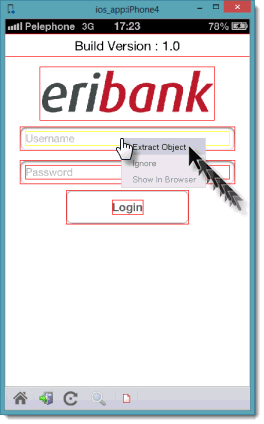

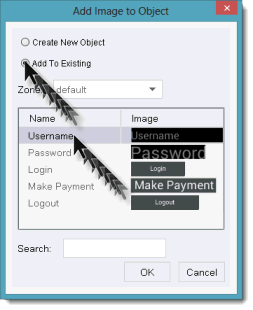
Now the Object will hold the Object's properties from both devices.
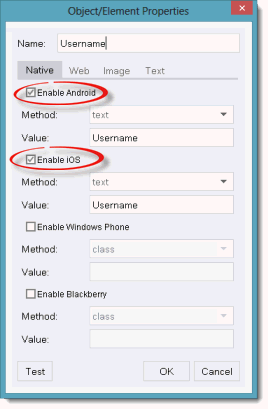
Step 3: Do the same for all other Objects.
Step 4: Go to the code that you have exported and change the name of the device under test to the name of the secondary device (instead of the main device).
